Product · What's new

What's new in Brigg

Brigg gets better every week. Here is what we have launched, newest first.

October 2026

6 launches
  1. Formatted text in your apps

    Articles, events and job ads with headings, lists and images

    A field in an app can now hold formatted text: headings, bullet lists, links, images and tables, written right on the record with a small toolbar. The text shows the same way in the app and on the website that uses it, so an article or a programme can be edited in Brigg and published as it is. Ask the agent for «a body with headings and images», and the field is there.
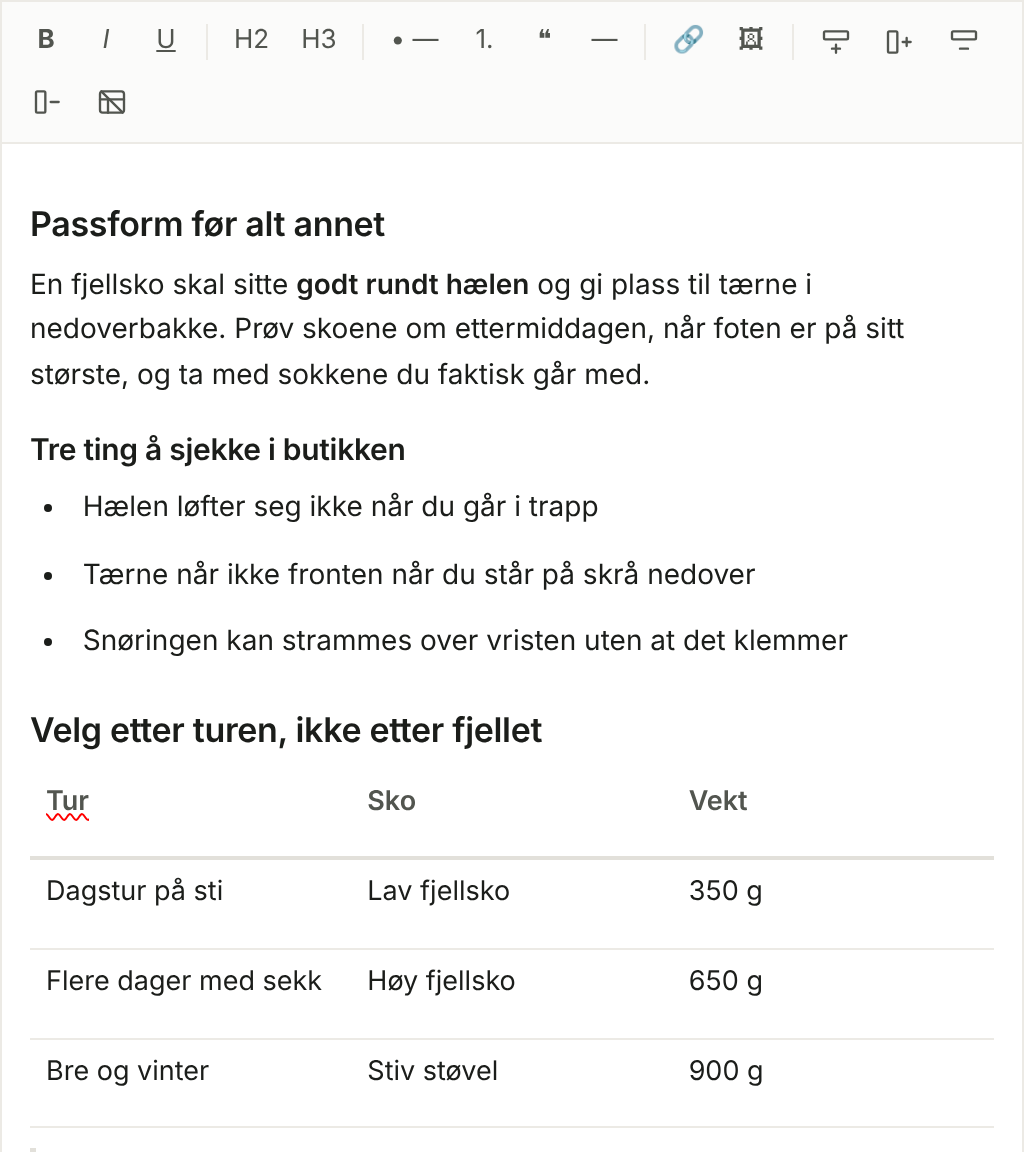

    An article edited right on the record, with the toolbar for headings, lists, links, images and tables.
    An article edited right on the record, with the toolbar for headings, lists, links, images and tables.
  2. Download documents as Word

    Documents — keep working in Word whenever you like

    A document made in Brigg, from a meeting, a customer or a template, can now be downloaded as a Word file and edited further in Word with its headings and paragraphs intact. The PDF is new too: it is laid out on A4 exactly as the document was designed. Both sit in the document's menu and right under the meeting it was made from, and the assistant hands you the file if you ask for it.

  3. A user manual for all of Brigg

    Every app, every screen and every field explained

    The new user manual walks through Brigg app by app, with a screenshot of every place you will land. You can search it in your own words, and the assistant looks things up in the same manual when you ask how something works, linking you straight to the right page.

  4. The meeting assistant looks up what comes up in the meeting

    Findings about companies, figures and rules in a quiet list beside the conversation

    With Meeting advice turned on, the assistant follows the meeting sentence by sentence and looks into what is said – on the web and in your own customers and meetings in Brigg. What it finds appears as small cards in the Agent tab, with no sound and no notifications. Seven minutes before the meeting is due to end, you get a short note on what to settle before everyone leaves.

  5. Send a signing reminder

    Signing — chase whoever has not signed yet

    When somebody has not signed, you can chase them from the same place you sent the document: by email, by text message, or both — your choice. The recipient list shows who has been reminded and how many times, and the same person is never nudged twice by accident. The signing link itself always travels by email, to the address the document was sent to; the text is the nudge that says it is waiting. The assistant can do the email round for you if you would rather ask it.

  6. Transcription in 60 languages

    From Japanese to Welsh, in the same meeting as English

    Under Personal › Meetings › Meeting languages you can now choose from 60 languages, up from ten. Search for a language the way you know it — “German”, “Deutsch” or “tysk” — and pick every one spoken in your meetings.

    Meeting languages with Norwegian, English, German and Japanese selected.
    Meeting languages with Norwegian, English, German and Japanese selected.

September 2026

23 launches
  1. The agent can read your Outlook mail and write drafts

    For teams on Microsoft 365

    Turn on «Read your email and write drafts» on your Microsoft account under Connected accounts. The agent can then search and read your mail to answer questions and follow up on threads, and put replies in your Drafts folder, ready to send. You are the one who sends them.

  2. Follow the agent's phone calls live

    See what is being said as it is said — and listen in if you want

    When the agent calls someone for you, the call gets its own card in the chat: who is being rung, whether they picked up, and the conversation word by word as it happens — including when the agent uses one of its tools along the way. Want to hear it yourself? Press Listen and get both sides of the call in your browser. When it is over, the card shows how it went and links to the conversation in Customer support.

  3. The agent can use your browser

    An errand in your own signed-in Chrome — not just research

    Give the agent an errand on a site you're signed in to — find the next open slot, fill in a form, submit a booking — and it works the page live in your own Chrome through the Brigg extension: reading, clicking, typing, and reporting back what it found and did, or exactly what it needs from you if it gets stuck. You can send it a message while it works, or stop it. Turned on under Personal › Permissions, like everything else the agent does in your name.

  4. A Word template keeps its own layout

    Upload the .docx you already send — get it back filled in

    Upload the Word template your company already sends under its own letterhead, and Brigg fills it in from a meeting and hands back a Word file. The layout, headers and styling stay exactly as they were — only the content is filled in. Templates live under Documents › Templates.

  5. Text documents you write in together

    Several people in the same document at once — and the agent writes there too

    Under Documents › Create document you will find Text document. Several people can write in it at the same time and see each other's cursor and edits as they happen, so nothing has to be sent round or merged afterwards. The agent writes in the same document, so you can ask for a draft and then edit it by hand without leaving the page.

  6. Connect Brigg to Claude, ChatGPT and Cursor

    Ask questions about your workspace where you already work

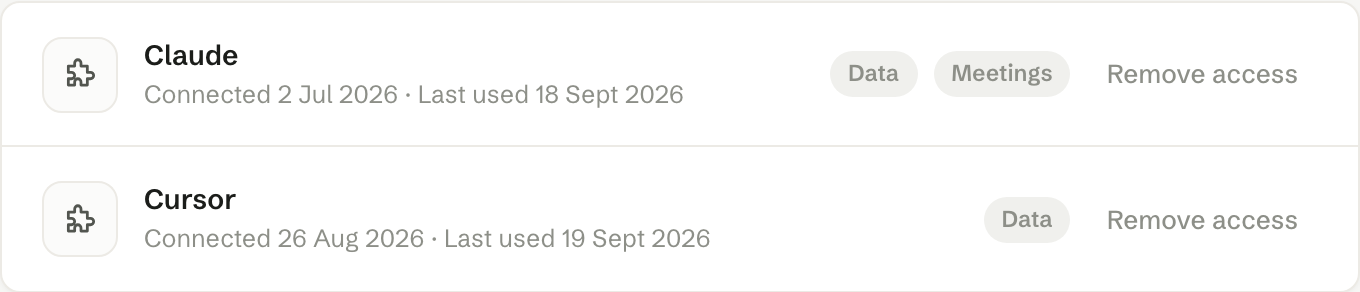
    Under Personal › MCP connections you connect your own workspace to Claude, ChatGPT or Cursor and ask from there against real data — customers, meetings and their summaries, records and the content of documents. The connection is read-only and sees exactly what you see in Brigg, never a colleague's private material, and you can remove it again at any time from the same page.

    The tools connected to your workspace, what each one may read, and «Remove access» beside it.
    The tools connected to your workspace, what each one may read, and «Remove access» beside it.
  7. Buy your domain through Brigg

    Registered in the company's own name — and Brigg runs the DNS

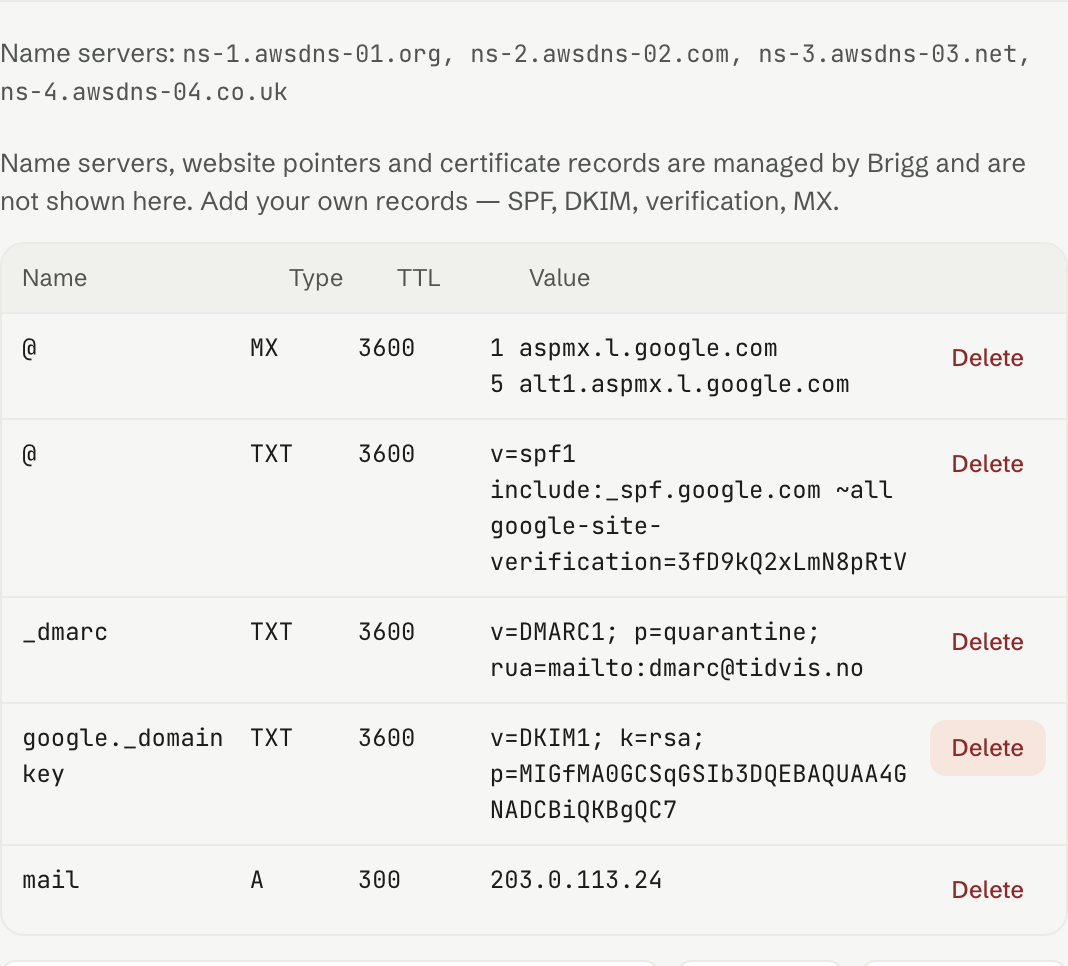
    Under Workspace › Domains you buy a domain and let Brigg run its DNS. The domain is registered in the company's own name — it is yours, not ours. The records that make mail and a website work are handled from one page instead of a registrar's control panel, and one click points the domain at a website you built in Brigg.

    The DNS records for a domain bought through Brigg — mail, verification and website handled from here.
    The DNS records for a domain bought through Brigg — mail, verification and website handled from here.
  8. The agent knows every Norwegian company

    Registry data, the board and management, key figures and the company's own website

    Ask the agent about any Norwegian company and it answers from the register instead of searching the web: registry data, the board and management, key figures per year, and what the company's own pages say. «Find accountants in Bergen with 5 to 50 employees», «who sits on that board» and «which companies look like this customer» are questions it takes directly. The register is Norwegian, but the questions can be asked from any workspace.

  9. Brigg in Danish

    The whole workspace, the agent and the public pages — in Danish

    Brigg speaks Danish. You switch language yourself under Personal › Account, and an administrator sets the default for the whole workspace under Workspace › General — the interface, the agent and the pages your own customers land on all follow. Danish companies find us at brigg.dk.

  10. The invoice is ready once the quote is signed

    The signature wins the deal, and the invoice is built from what you sold

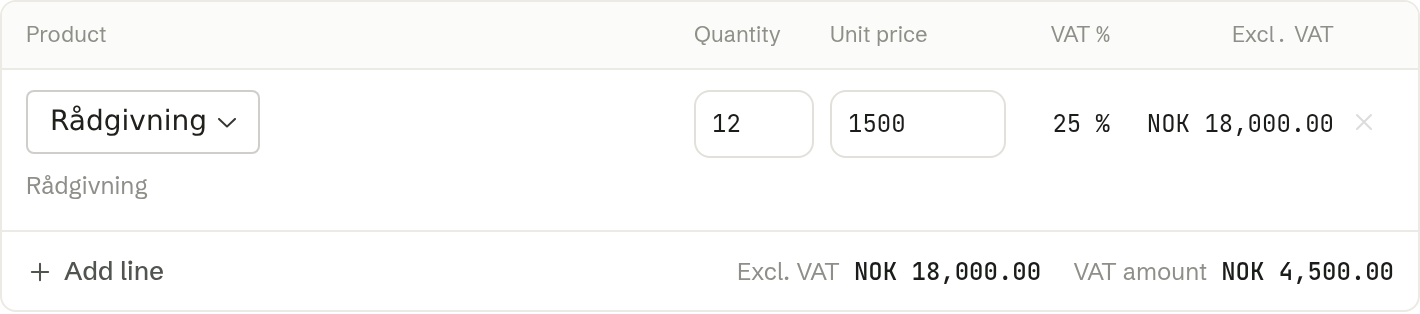
    When a quote comes back signed, Brigg closes the deal as won. If you have connected your accounting system, the invoice is filled in from the lines on the deal — customer, product, account and VAT rate all come from the accounting system, so nobody has to pick them again. Ask your twin to prepare it the moment the deal is won: it comes to you for approval, and it is issued in the accounting system when you say yes. Supported today for Unimicro, a Norwegian accounting system.

    The invoice line in Create invoice: product, quantity, unit price and VAT rate already filled in from the deal.
    The invoice line in Create invoice: product, quantity, unit price and VAT rate already filled in from the deal.
  11. Change the deadline on a signing you have already sent

    Give the recipient more time — without sending the document again

    When the deadline on an offer turns out to be too short, you can now move it from Signing. The recipients keep the same document and the same link, anything already signed stays signed, and everyone who has not signed yet gets an email with the new date. You can ask the agent to do it too.

  12. The assistant can send text messages

    Personal › Permissions – Send text messages for you

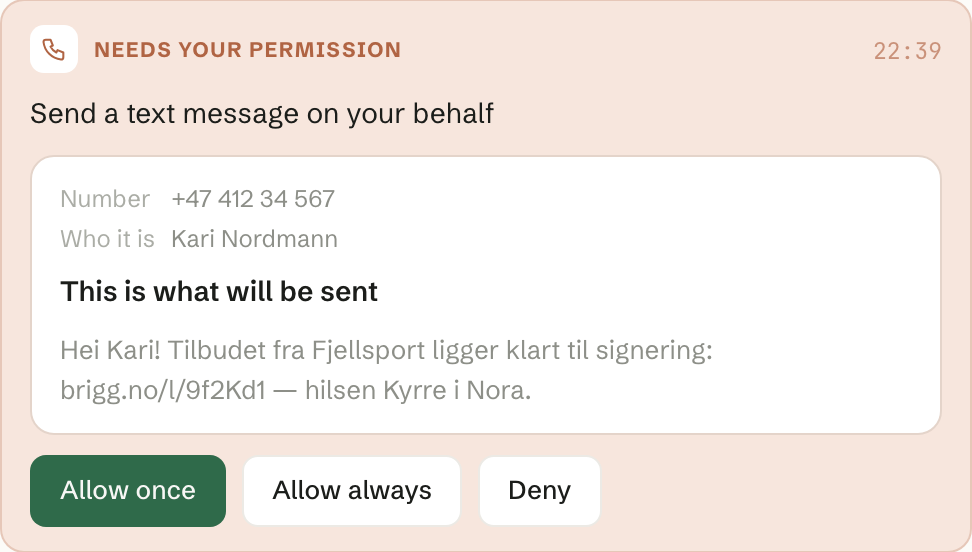
    Ask the assistant to text a customer or a contact and it goes out from the sender «Brigg» to the mobile number on their record. You see the number, who it is and the whole message before anything is sent, and the message lands on the customer's record afterwards — alongside the email you have sent them. Under Personal › Permissions you answer each channel separately, so you can let the assistant write email without letting it send text messages.

    The card in the chat shows the number, who it is and the whole message before anything is sent.
    The card in the chat shows the number, who it is and the whole message before anything is sent.
  13. Let your apps help callers

    Choose what your phone agent can do

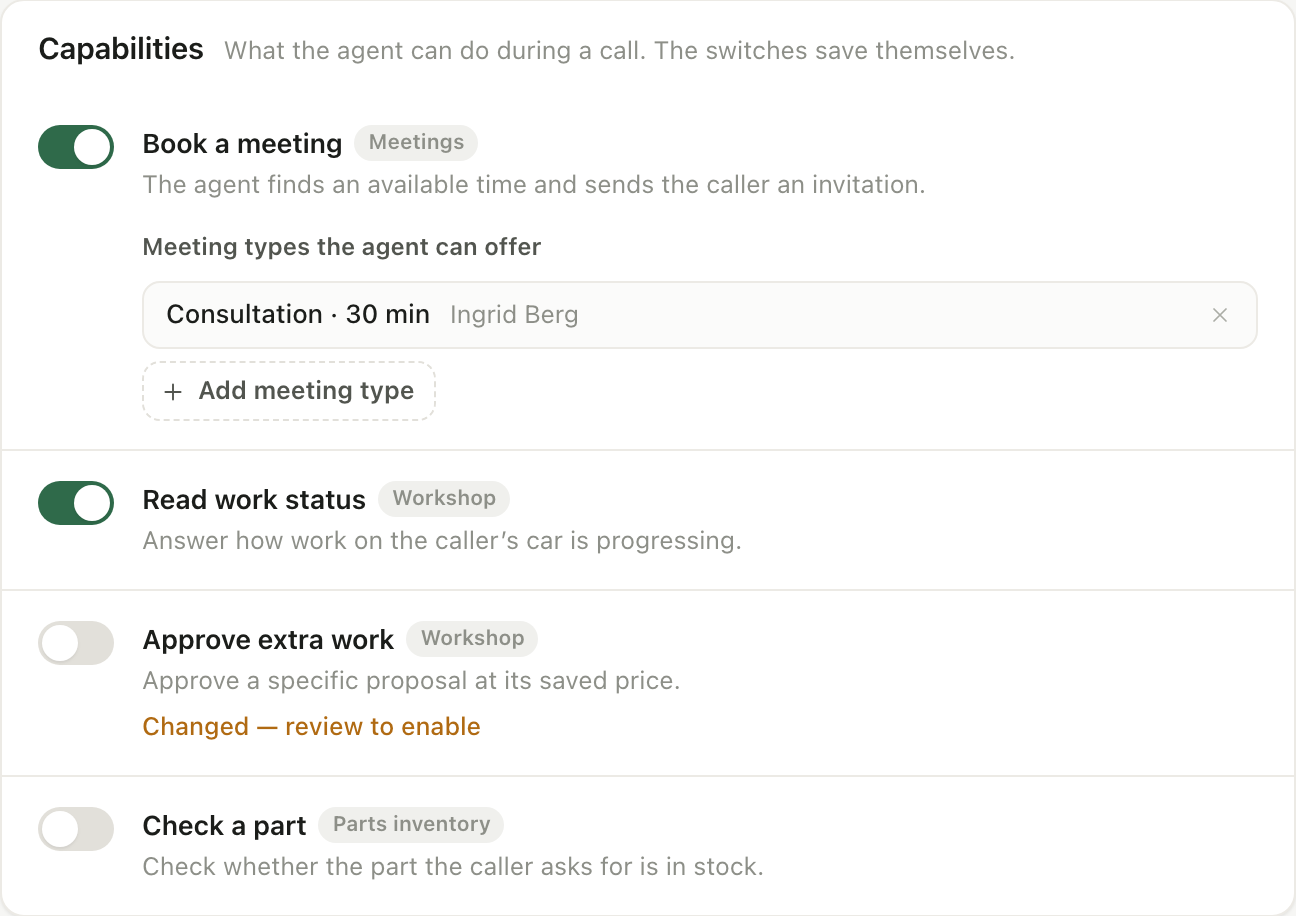
    Choose phone capabilities from your apps and integrations under Customer support → Phone. Let callers check their cases, approve work or book a meeting. Test with text or a microphone, even without a phone number and as an unknown caller.

    Choose the capabilities your workshop offers to callers, and review changes before enabling them.
    Choose the capabilities your workshop offers to callers, and review changes before enabling them.
  14. A signed offer fills in the customer record

    The deal's line items land under Products once the offer comes back signed

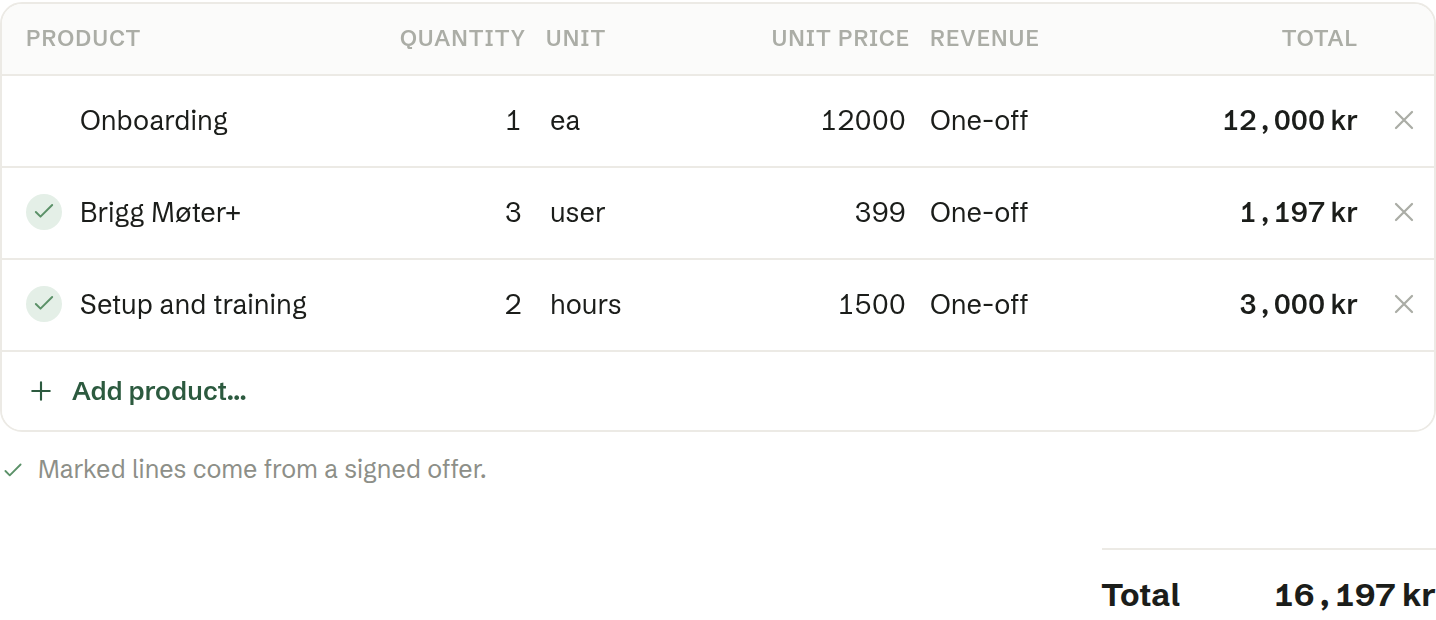
    Nobody has to type in what they just sold a second time. When an offer comes back signed, the line items from the deal land as product lines under Products on the customer's own record, marked as agreed, so the record shows what the customer actually bought. Send a corrected offer out again and sign it, and it replaces the lines from the previous round instead of adding a copy.

    The Products tab on a company: the lines from the signed offer are marked, the line somebody typed in is not.
    The Products tab on a company: the lines from the signed offer are marked, the line somebody typed in is not.
  15. Recurring revenue in Customers

    The price list now tells subscriptions from one-off sales

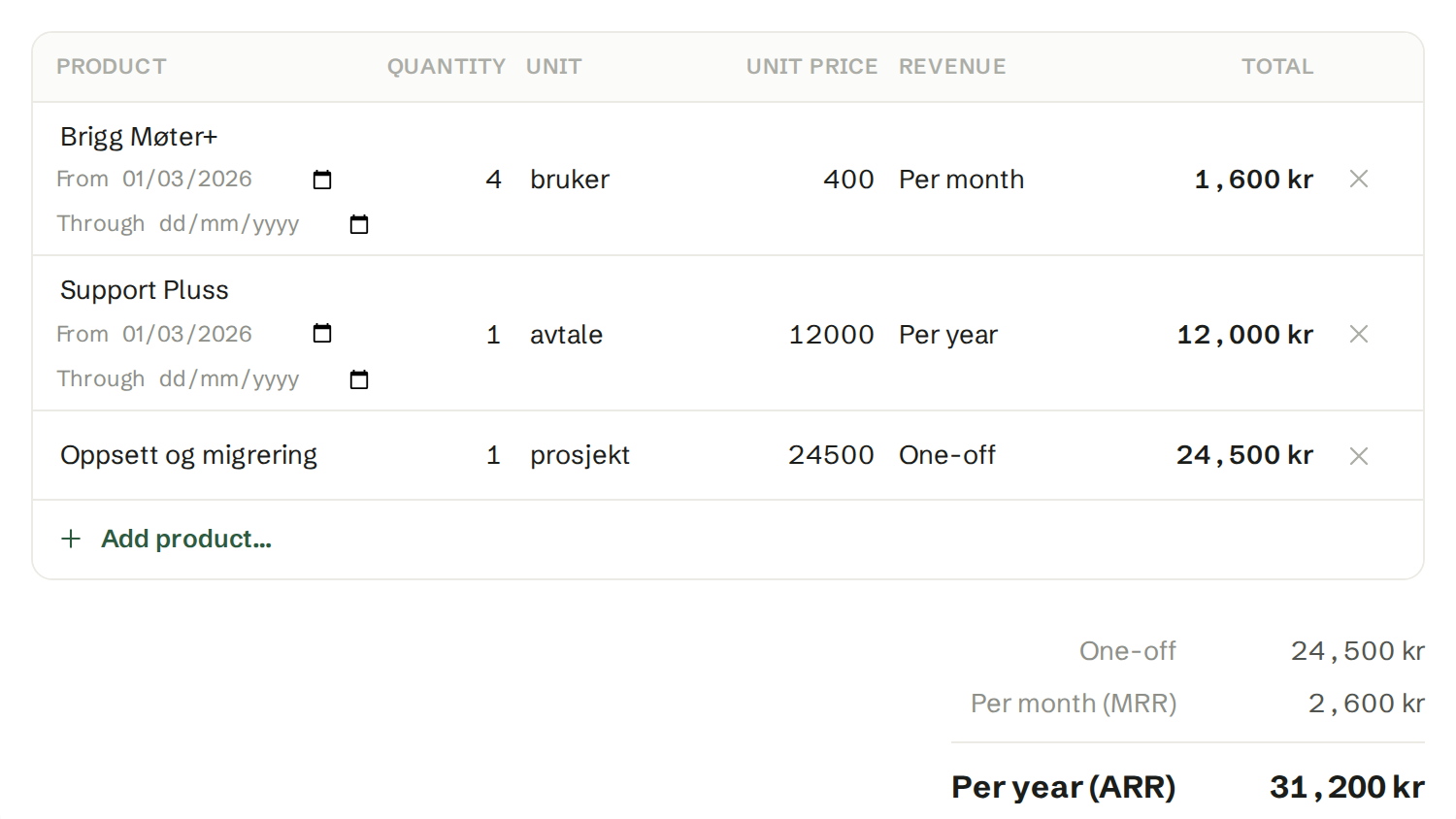
    A product can be a one-off job or a subscription billed monthly, quarterly or yearly. Put it on a customer and Brigg works out what they pay once, what they pay every month and what that comes to over a year. Cancelling a line means setting an end date — the row stays, so the figures for earlier months still add up.

    The products on a customer record, with the one-off, monthly and yearly totals under the table.
    The products on a customer record, with the one-off, monthly and yearly totals under the table.
  16. The quote you sent is on the customer record

    Sent, out for signature and signed — gathered under Documents on both the company and the contact

    Send a customer a quote or any other document, or ask them to sign one, and the document now sits under Documents on the person who received it and on the company they work at. The row says which of the three it is, and the document stays exactly where it already lived — it is the same file, not a copy. Send it first and get it signed later and it is listed once.

  17. The e-mail you sent is on the customer record

    Its own Email tab, and in the activity list alongside meetings and notes

    Send a contact an e-mail from Brigg and it turns up under that person straight away — the subject, when it went, who sent it. It sits both in an Email tab of its own beside Sales and Meetings, and gathered into the activity list, so the whole history with a customer reads in order in one place. Nobody has to forward anything to a shared inbox, and there is nothing to file by hand.

  18. See how far the recipient has got

    Sent, opened, signed — and a notification when the agreement lands

    The signer list now shows whether the recipient has actually opened the document, not just whether they have signed, so you know if you are chasing someone who has never seen it. The same events sit on the contact's and the company's own activity list in Customers, next to meetings and notes. Once every party has signed, whoever sent the document gets an email with the signed PDF — not just the signers.

  19. Integrations for your apps

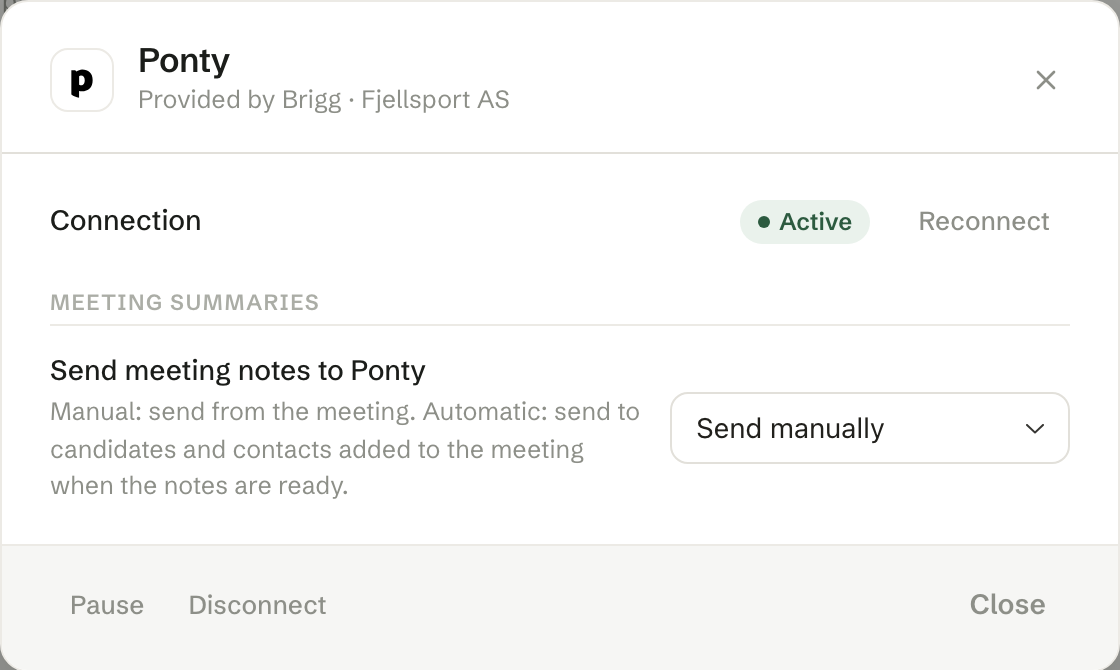
    Connect Brigg to Teamtailor, Recman, HubSpot, Ponty and SuperOffice, or build an integration for your own apps. Search for contacts, candidates and assignments from a meeting, add the relevant background, and choose who should receive the summary. Reference checks use the same ATS connections. Preview data before syncing and choose which actions need approval.

    The Ponty connection in Brigg: active, with meeting notes sent manually or automatically.
    The Ponty connection in Brigg: active, with meeting notes sent manually or automatically.
  20. A reminder before the meeting

    The Brigg app tells you in good time, so nothing slips past you

    Choose how long before a meeting you want to be reminded — two, five, ten, fifteen or thirty minutes — and the Brigg app puts a notification on your screen with the meeting and when it starts. The reminder follows the calendar you have already connected, so it moves by itself when the meeting moves. You switch it on under Personal › Meetings.

  21. The agent makes the pictures too

    Websites and newsletters arrive with their photography and illustration

    When the agent designs a website or a newsletter it now creates the imagery that belongs in it — the hero at the top, the illustration in a section, the texture behind a band — in the shape the design needs. You can also ask for a single image: describe it, and it draws it. Pictures meant to show your own premises, people or products are still yours to take; that is a deliberate line, not a limitation.

  22. Newsletters on a schedule

    The agent writes every issue — you approve, or let it go out on its own

    Set up a newsletter that is written weekly, every second week or monthly. You choose the recipients and where the agent should look for material — the website, the blog, industry news, shared meetings and new customers — and it writes each issue in the same design as the last. Under Newsletters › Scheduled you see every issue, when the next one is written, and the instructions to the agent are yours to change at any time.

  23. Sign with Norwegian BankID

    A qualified e-signature when the contract calls for it

    Signing now supports Norwegian BankID, alongside the lighter typed-name signature flow. Pick the method when you send the document; the recipient signs with their BankID as usual, and the finished document carries a qualified electronic signature, legally equivalent to a handwritten one.

August 2026

29 launches
  1. The agent moves and cancels meetings in your calendar

    The whole scheduling conversation, from invite to new time

    The agent could already send calendar invitations in your name. Now it can move and cancel them too, so a back-and-forth about meeting times can be finished without you opening Google Calendar or Outlook yourself. The invitation thread and the meeting link survive a move, and all of it sits behind one permission under Personal › Permissions.

  2. The summary knows who said what

    Names on the voices, and you can correct them yourself

    Meetings Brigg transcribes now get a name on every voice: yours, the person you met one-to-one, and the rest numbered in the order they spoke. Under «View conversation» you give each voice the right name in one pick, and the name carries into the summary, the follow-ups and everything the agent reads.

  3. Duplicate newsletters, documents and websites

    From the «…» menu in the toolbar you can now make a copy of a newsletter, a document or a website, naming the copy as you go. A filed document lands next to its original, and a shared one is visible to everyone in the workspace.

  4. Ask the agent to update hundreds of records at once

    Bulk changes in Customers and your own apps

    «Mark all of these as lost», «move every customer in Bergen to Kari» — the agent now makes the change as one operation, however many records it covers. Each record is validated as before, and you are told about any that could not be changed.

  5. Brief: the agent's summary on customer, contact and meeting cards

    What you need to know, written before you ask

    Every customer card, contact card and meeting now carries a Brief: a short summary the agent writes from what Brigg knows and what it finds online — who they are, what happened last, and what is worth doing now. The brief keeps itself current and suggests next steps you can take with one click.

  6. Ask for data, get a table

    The agent shows rows instead of listing them in the chat

    Ask the agent for «every customer with no activity this year» and you get a table you can sort, scroll and download as CSV — not a list in the chat. The table is always current and has no upper limit, and you can ask the agent to keep working on exactly those rows: «mark all of these as priority».

  7. Several organisations, one sign-in

    Switch workspace without signing out

    If you work for more than one company, you can now add them to the same sign-in — including a workspace you were invited to on a different email address. They all sit in the organisation switcher, one click apart. Nothing is merged; each company's data stays as separate as before.

  8. Brigg Start: from an idea to a company ready to register

    start.brigg.no — no sign-in, for founders in Norway

    Brigg Start takes you from an idea to a company ready for the Norwegian register: a market snapshot with competitors near you, name suggestions checked against the company register, a logo, an available domain, a finished three-page website, and the articles and shareholder agreement for the company form you pick. At the end you get a Brigg workspace with all of it in place, including a checklist for the registration itself.

  9. Quotes from your own templates

    The agent uses your templates, and asks which one

    Ask the agent for a quote — or press «Lag tilbud» in a meeting summary — and the draft is built on the workspace's own templates under Documents › Templates. When there are several, the agent asks which one you want, so the quote looks like yours, not like Brigg's.

  10. Brigg in Swedish and English

    brigg.se and brigg.com

    Brigg now comes in three languages, each on its own domain: brigg.no in Norwegian, brigg.se in Swedish and brigg.com in English. The language you pick follows you into Brigg — the agent speaks the language of the page you came from — and Swedish companies sign up with their own organisationsnummer.

  11. Tailor the menu for your workspace

    Workspace › Menu

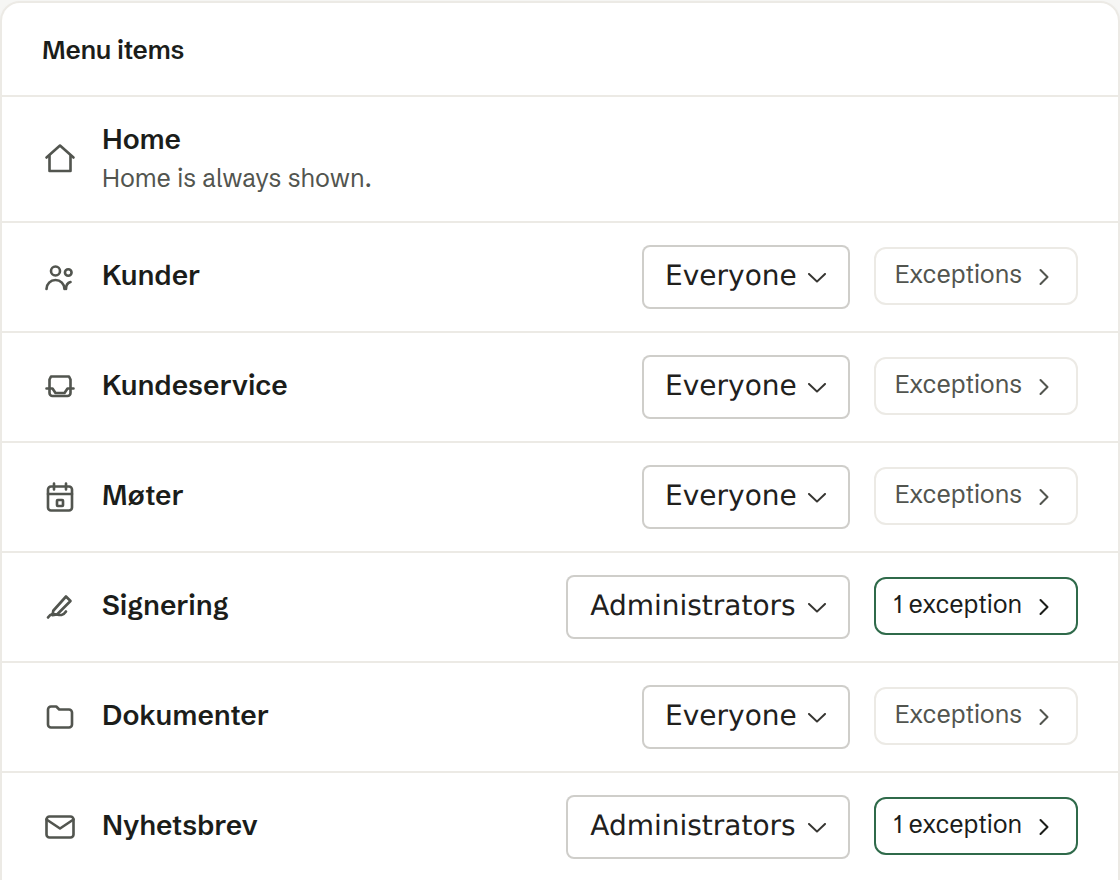
    Admins can now choose which menu items the workspace shows, and to whom: everyone, admins only, or nobody — with exceptions for individual people. A hidden item disappears from the menu while the data and the agent stay as they were, so you can keep the menu tidy without taking access away from anyone.

    Workspace › Menu: every menu item gets an audience — everyone, admins or nobody — with per-person exceptions.
    Workspace › Menu: every menu item gets an audience — everyone, admins or nobody — with per-person exceptions.
  12. Invite the whole team from one paste

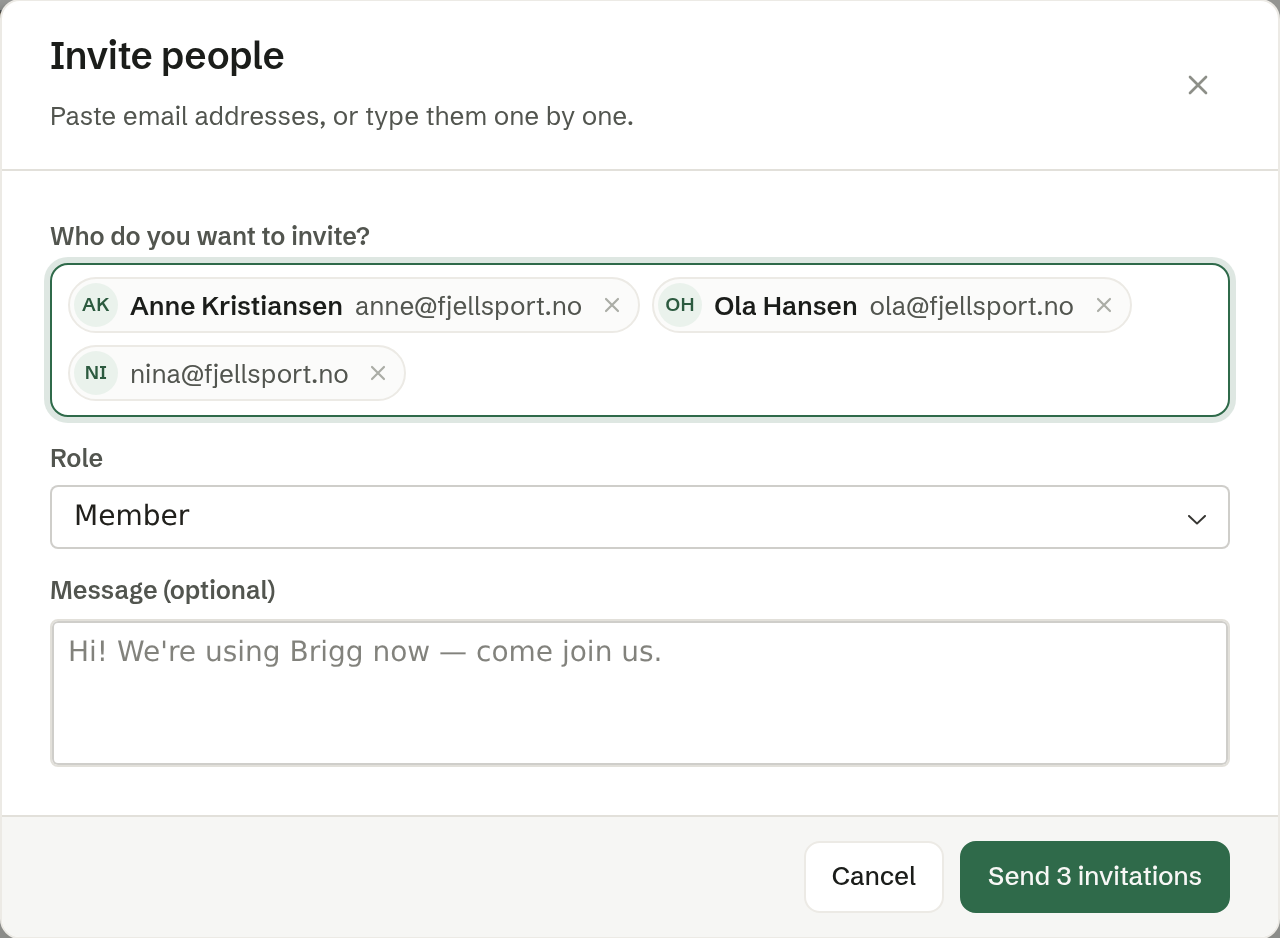
    Paste a list of email addresses — from a spreadsheet, an email thread or a note — and Brigg picks out the addresses and names and creates one invitation per person. Choose a role for everyone, add a personal line, and send.

    One paste became three invitations, with the names picked out of the text.
    One paste became three invitations, with the names picked out of the text.
  13. One booking link, several meeting lengths

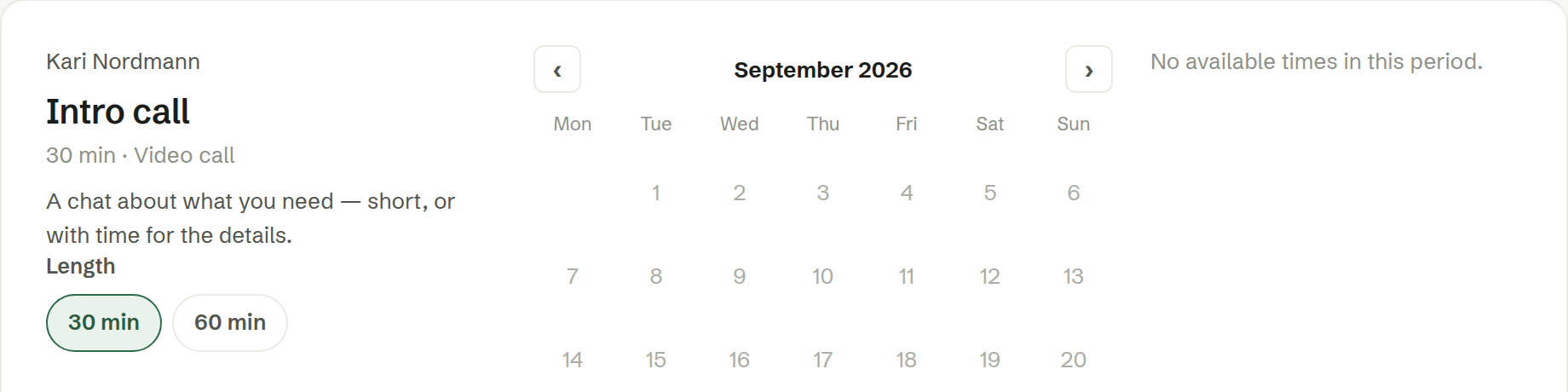
    A booking link can now offer several lengths — 30 minutes or an hour, say — and whoever books picks one on the booking page. Before, that took one link per length.

    The booking page lets the visitor pick 30 or 60 minutes on the same link.
    The booking page lets the visitor pick 30 or 60 minutes on the same link.
  14. You decide what the agent may do in your name

    Personal › Permissions

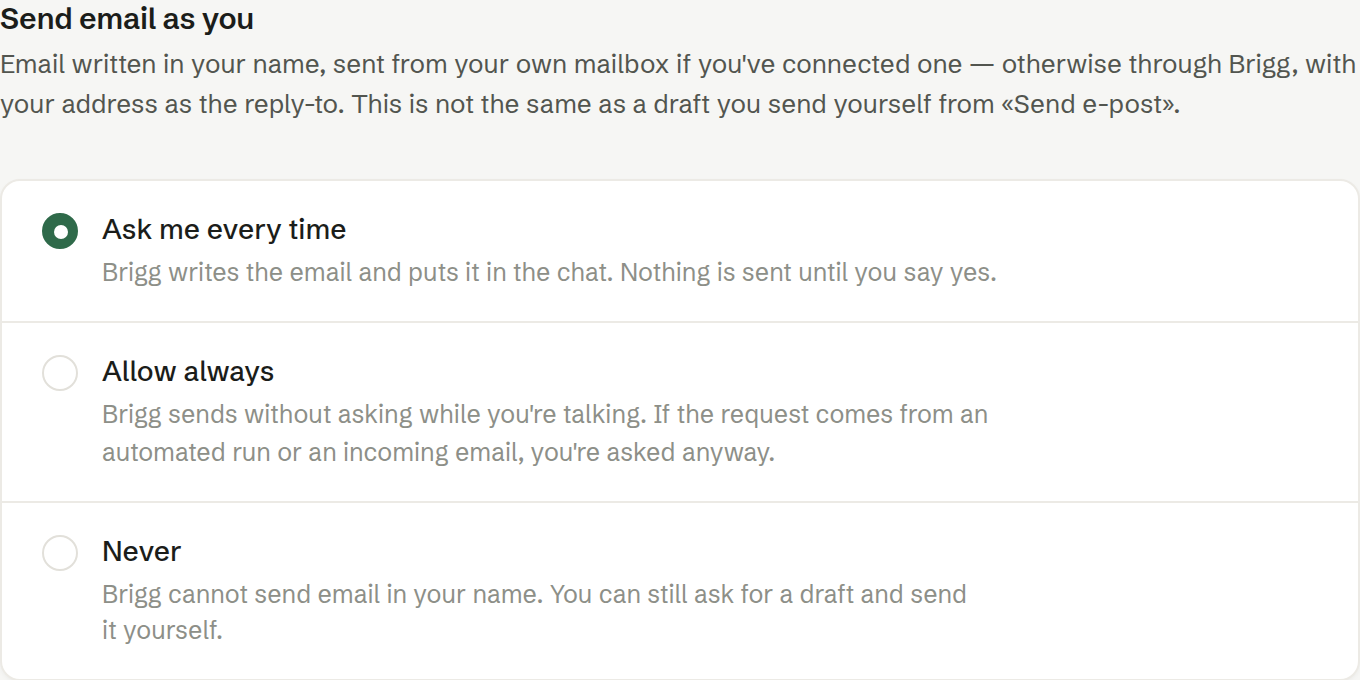
    When the agent wants to send an email from your address or put a meeting in your calendar, you now choose per action: ask me, always allow or never. With «ask me» you get a card in the chat showing exactly what will be sent, and nothing happens until you approve.

    Three choices per permission: ask me every time, always allow, or never.
    Three choices per permission: ask me every time, always allow, or never.
  15. Stats on every newsletter

    Sent, delivered, opened and clicked — live

    A sent newsletter now shows four numbers that update while you watch: how many it went to, how many received it, how many opened it and how many clicked. Open and click rates are measured against confirmed deliveries.

  16. Merge tags in newsletters

    «Hi [firstname]!» — without worrying about the blanks

    Write [firstname], [lastname], [name], [company] or [email] anywhere in a newsletter — the subject line included — and every recipient gets their own. When the detail is missing, the tag disappears along with the space and comma around it, so «Hi [firstname]!» becomes «Hi!» rather than «Hi !».

  17. Brigg for iPhone and iPad

    All of Brigg in your pocket, meeting transcription included

    The Brigg app is on the App Store. You get the whole workspace — customers, documents, the agent — and can transcribe meetings straight from your phone. Open Brigg in the browser on an iPhone and it points you to the app.

  18. Upload a contract, get it signed

    Upload a quote or a contract as PDF or Word and Brigg turns it into a document that can be signed electronically. The signature lines in the original become real signature fields, so the recipient signs in Signing instead of printing.

  19. Webhooks when a meeting is done

    The summary straight into your own systems

    Admins can register a webhook that is called every time a summary is ready, carrying the summary and the transcript. Deliveries are signed and retried on failure — so your CRM, your case system or your spreadsheet gets the meeting without anyone copying it over.

  20. Privacy settings for meetings

    Workspace › Privacy

    A workspace can now decide how long transcripts are kept (30, 90, 180 or 365 days), delete them automatically the moment the summary is written, and remind the host to disclose that the meeting is transcribed with AI. And under Personal › Meetings you can keep Brigg's own windows out of screen sharing on the desktop, so your notes stay yours.

  21. Meetings in the language you actually speak

    Under Personal › Meetings › Meeting languages you pick which of ten languages your meetings are held in, so transcription listens for the right one regardless of the language Brigg is shown in. The summary is written in the meeting's language, not the workspace's — an English meeting gets an English summary.

  22. Dictionary: teach transcription your industry's words

    Product names, jargon and names that always came out wrong can now go in a dictionary — one for the whole workspace and one of your own — that transcription uses in every meeting. The attendees' names and the company you are meeting are added automatically.

  23. Meeting prep: the agent does the research

    Ready before the meeting, without googling

    Before a meeting the agent goes and finds out who you are meeting: the company, the roles, what you have discussed before and what is new online. The result is waiting on the meeting when you open it — and on every attendee's profile.

  24. Document templates in Documents

    Documents › Templates — shared and your own

    The workspace now has a home for templates: quotes, contracts, letters and everything else you produce over and over. Shared templates are available to everyone, personal ones only to you, and «Create document» offers both.

  25. The agent builds apps in the background

    Ask for an app, then get on with your day

    When you ask the agent to build or change an app, the build now runs as its own task that outlives the conversation. You follow its progress on a card in the chat, can close Brigg and come back, and are told when the app is ready to try.

  26. Advice in meetings, while they happen

    Personal › Meetings › Advice during meetings — off by default

    Turn it on and the agent listens along in the meeting and sends short, quiet notifications when they are worth it: an opener drawn from who is in the room, a negotiation move, what a term means, something it looked up. It is built to say little — silence is the default answer — and you decide how much you want.

  27. Products and services in Customers

    A price list, and line items on customers and deals

    Customers has a new Products tab: the workspace's own price list. Every deal and every customer can carry product lines with quantities and prices, so a quote is built from something structured instead of the agent asking about each line.