
Under Company settings › API keys you create the keys that let another system — a sales portal, an accounting system, a script — work with your Brigg through the public API. You decide what each key may do, and you can revoke it at any time. The reference and guides for developers are at developer.brigg.app. Admin
Create a key
Press New key, give it a Name that says what uses it, and choose what it may do (below). Press Create key. The key is shown once, in Your key is ready: press Copy key, paste it into the other system, and then press Done. Brigg cannot show it again.
What a key may do
- Access — Read only, Read and edit data, or Choose operations to pick the exact actions from a searchable list.
- Apps — all apps, or only the ones you pick.
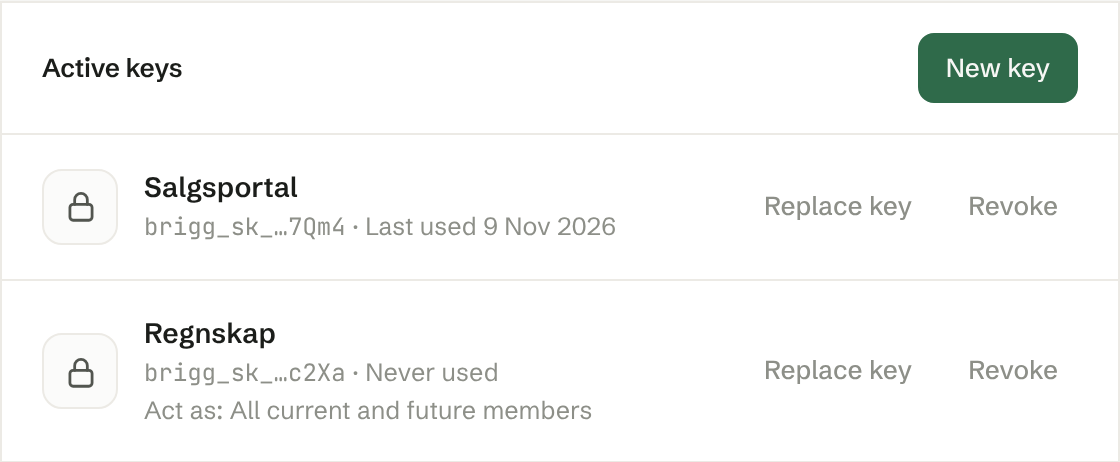
- Act as — Workspace only gives the key the workspace's shared data alone. All current and future members lets the system work on a chosen colleague's behalf, with that person's data, private data included. Private ownership and project boundaries still apply.
A key never gets more than you gave it. New operations are not added to a key on their own; you create a new key for that.
Replace or revoke a key
Active keys lists every key with when it was last used. Replace key makes a new key with the same access, while the old one keeps working; update the other system, then press Revoke the old one. Revoke stops a key at once: everything that uses it loses access immediately.
Shared MCP connections
Shared MCP connections lists the AI tools an administrator has connected to the whole workspace. Server address is the address you paste into the AI client. Disconnect removes a connection's access at once.
Who can do what
Only owners and administrators see this page, create keys and revoke them. The agent can revoke a key for you, but only a person can create one, because the key is shown in full when it is made.