
Your signatures are under Personal settings › Email › Signatures. Your default signature goes under the email you send from Brigg in your own name.
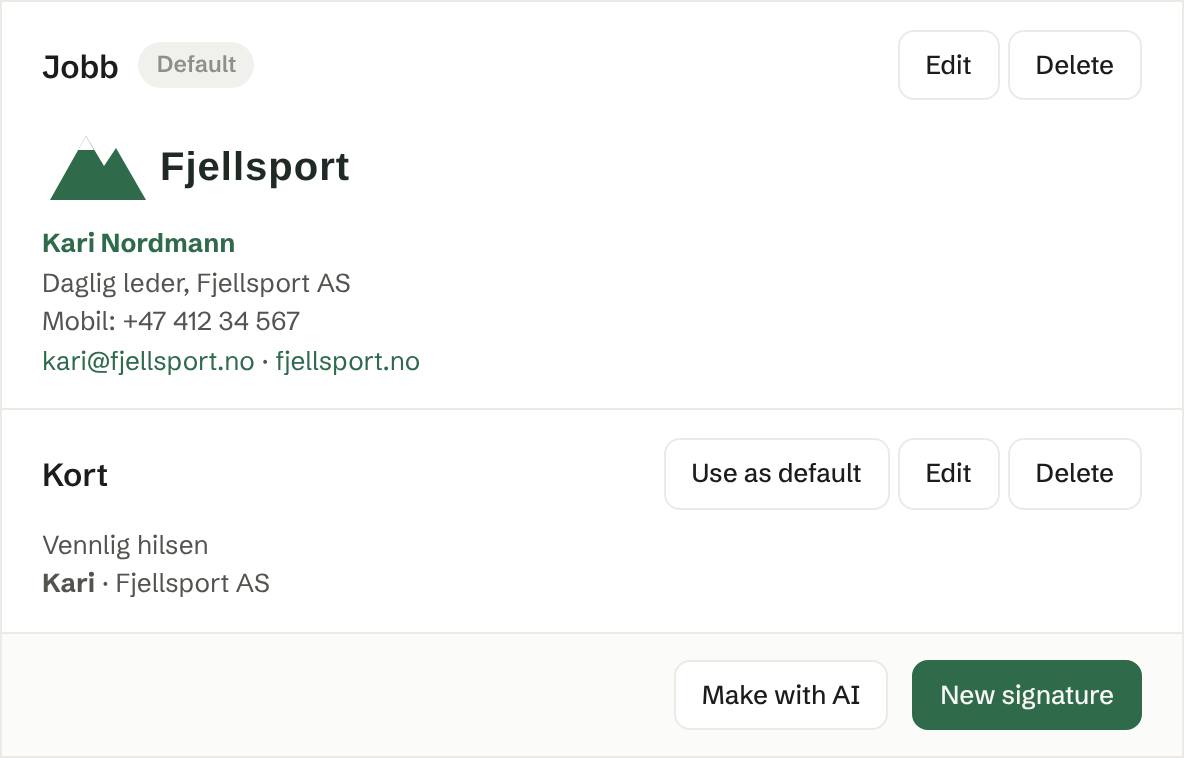
Making a signature
New signature opens a window with a name and the signature itself. Write your name, title and contact details, and use the toolbar for bold and italics, links and images, such as the company logo. Save adds the signature to the list.
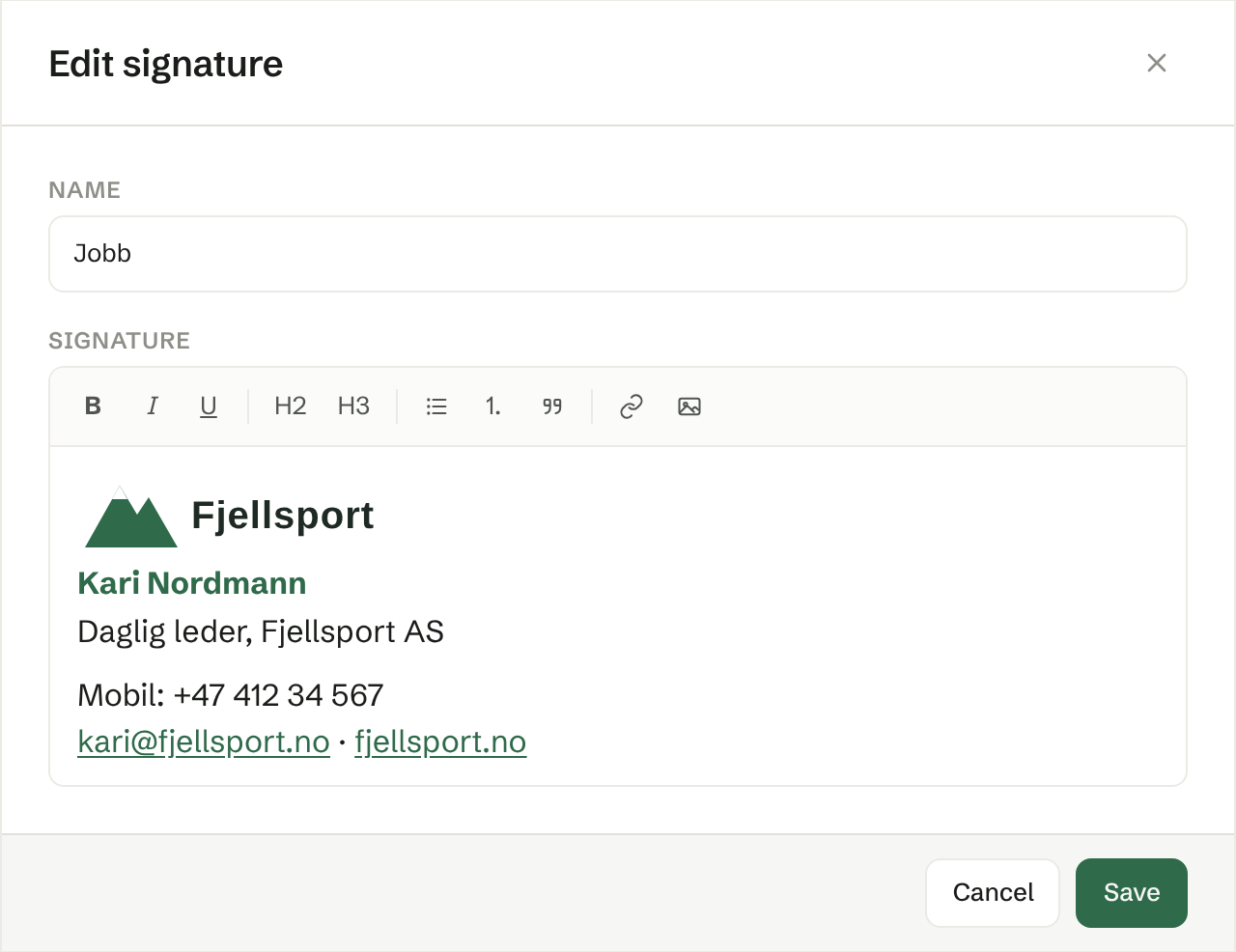
Make with AI
Make with AI writes a signature for you from your contact card in Customers and the workspace's brand: name, title, phone and email, in the brand colours and with the logo. Anything not on the card is left out. The new signature opens so you can read and correct it before you use it. Each signature made uses credit.
The default signature
One of your signatures is always the default, marked Default. The first one you make is the default. Use as default makes another one the default. Delete the default and one of the others becomes the default.
When you send email
In Send email your default signature sits under your text, above the minutes when they ride along — where it sits in the email. Signature beside it switches to another signature or to No signature. The signature goes with email from your own mailbox and from Brigg, and with email the agent sends in your name. Minutes you send without words of your own carry no signature.
Who sees your signatures
Only you. Signatures belong to the workspace you are in, so if you belong to several workspaces you have separate signatures in each.