
Open Company settings › Custom fields to add the fields you need on Companies, Contacts, Deals and Products in Customers — a customer number, an establishment fee, an interest rate. The fields show for everyone in the workspace. Admin
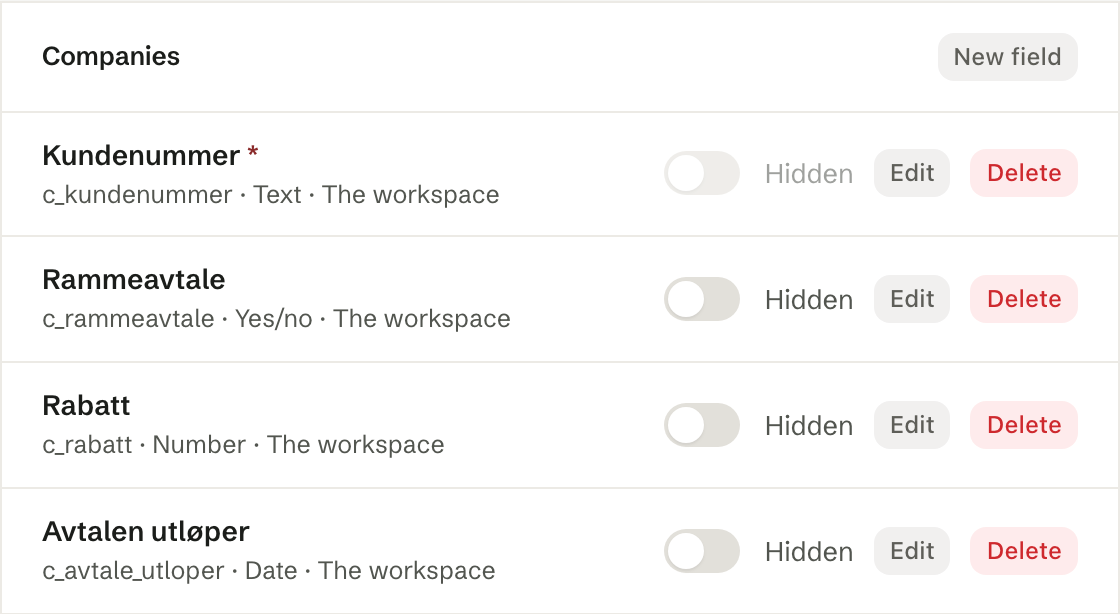
Adding a field
Click New field on the type the field belongs to.
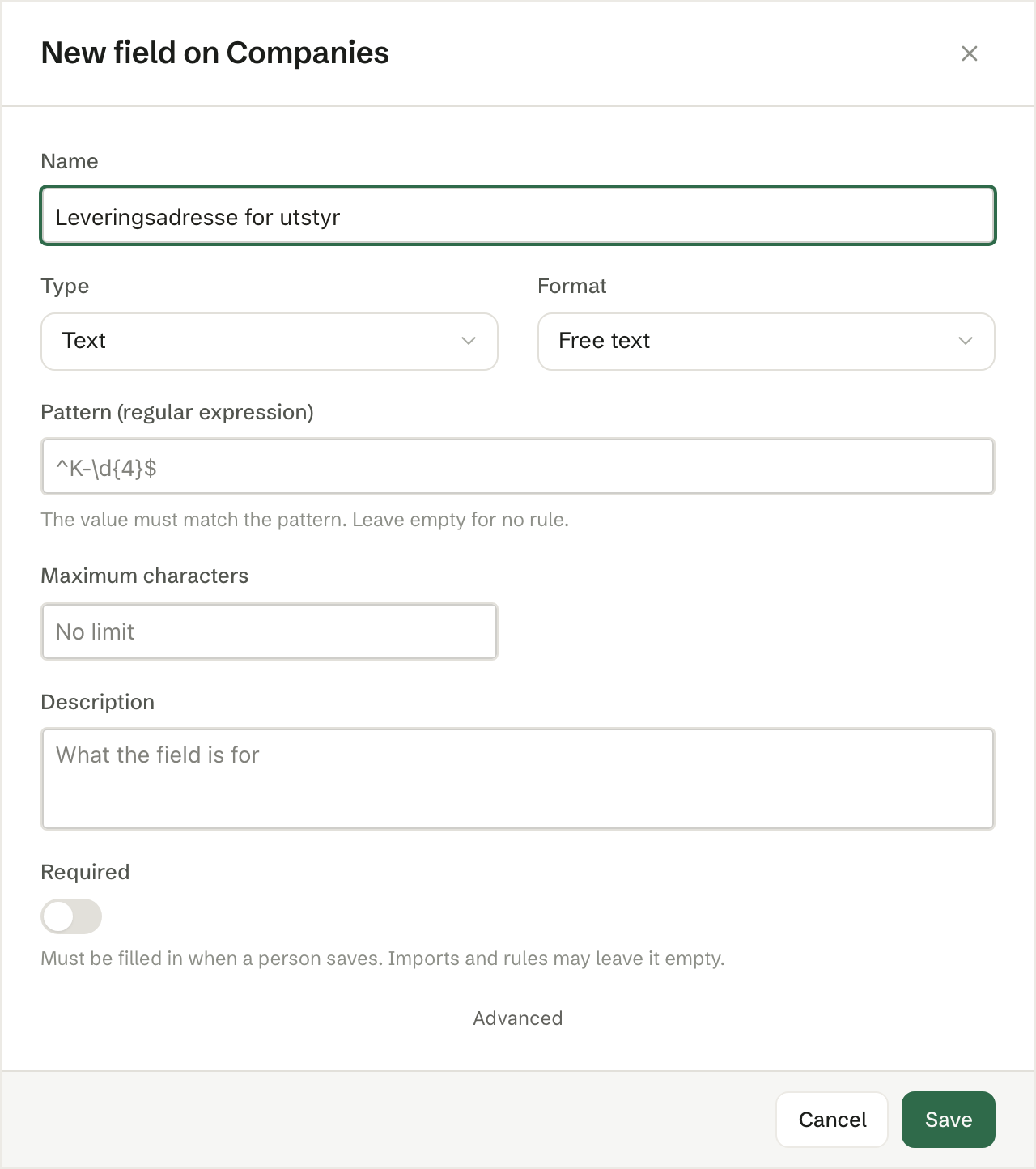
- Name — what your colleagues see in Customers.
- Type — Text, Long text, Number, Amount, Yes/no, Date, Date and time, Choice or Reference. The type cannot change once the field exists, so choose it with care.
- Description — what the field is for.
- Required — the field must be filled in when a person saves. Imports and rules may leave it empty; the record is then incomplete, and the Incomplete pill on the list finds it.
- A number can have Decimals and a Unit (such as %). A text field can have a Format, a Pattern (regular expression) and Maximum characters. A number can have a Lowest value and a Highest value.
Under Advanced are the field's Key and the Hidden switch.
Changing a field
Edit changes the name, the description and the rules. A rule can always be loosened. A stricter rule is refused while records break it — fix those first.
Hiding a field
Hidden takes the field off Customers, but the agent and exports still see it. A required field cannot be hidden. Fields an app added are hidden by default. The app owns them, so you can only show or hide them.
Deleting and restoring
Delete removes the field from Customers. The values are kept for 30 days: under Deleted fields, Restore brings back the field and all its values.
The agent
Ask the agent for a field and it proposes one, adding it once an owner or administrator says yes. It can also change and restore fields, but deleting is yours to do.